Your apps and services, one click from the tray.
TrayBar is a free quick-launch panel that lives in the Windows system tray. Pin your apps, group them into sections, and see at a glance whether your servers and services are up — without opening a browser tab.
What it does
One click away
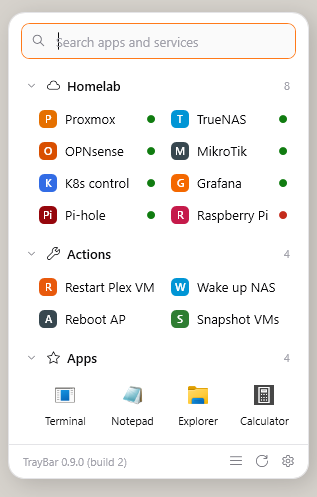
Click the tray icon and your launcher is there — anchored to the taskbar corner, on the right monitor, at the right DPI. Esc and it's gone.
Live status checks
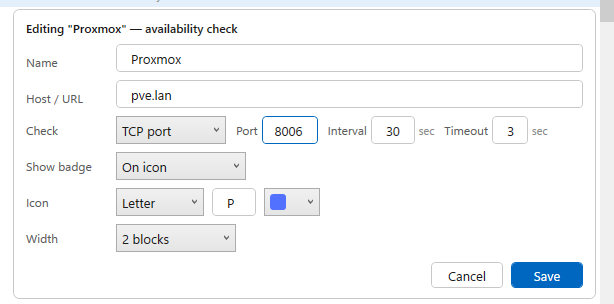
Add a server, NAS, router, or web service and TrayBar pings it in the background — ICMP, HTTP, or a raw TCP port. A green or red dot on the icon tells you it's up before you even click. HTTP services open in your browser.
One-click actions
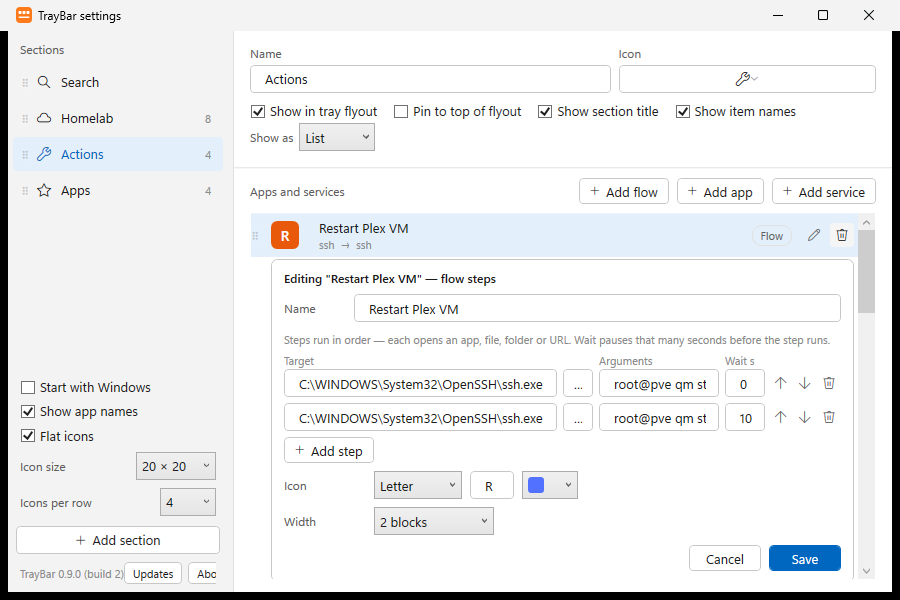
A flow runs a list of steps in order — programs, folders, URLs, or commands — with optional waits between them. "Restart Plex VM" can be two ssh steps with a 10-second pause; "start my workday" can be five apps at once. One tile, one click.
No false alarms
A blip isn't an outage: a service turns red only after two consecutive failed checks. Each service has its own interval and timeout — ping the router every 15 seconds, poll the backup box every ten minutes.
Your layout, your rules
Sections with icons, two view modes (compact Minimal and tiled Cards), 3–10 columns, adjustable icon size, wide list rows for services, letter monograms or custom images for icons. Everything autosaves.
Quiet by design
Follows your Windows light/dark theme. Keyboard-first: arrows to move, Enter to launch, type to search. No ads, no account, no background noise — it checks only the hosts you configured.
Built for your homelab.
If you run a homelab, you know the drill: a Proxmox tab, a TrueNAS tab, Grafana, Pi-hole, the router UI — and you still find out something is down when a download stalls or the TV app spins. TrayBar moves that first "is everything up?" glance out of the browser and into the corner of your screen, where it's always one click away.
Glance
Every service shows a green or red dot, checked on its own schedule. Ping the router every 15 seconds, TCP-check the Proxmox web port, HTTP-check Grafana behind your reverse proxy — 401 from an auth gateway still counts as up, and self-signed certificates are fine.
Open
Click a service and its web UI opens in your browser. No bookmarks folder, no "what port was that again."
Act
Flows turn commands into buttons. Anything you can run from a terminal — ssh, wake-on-LAN, a PowerShell script — becomes a one-click action in your tray, with waits between steps where you need them.
Actions people actually build
| Action | Steps |
|---|---|
| Restart a Proxmox VM | ssh root@pve qm stop 105 → wait 10 s → ssh root@pve qm start 105 |
| Wake the NAS, then open it | wolcmd A1B2C3D4E5F6 … → wait 20 s → https://truenas.lan |
| Reboot a MikroTik AP | ssh admin@192.168.88.1 /system reboot |
| Snapshot VMs before you tinker | ssh root@pve vzdump 105 202 --mode snapshot |
| Restart a Docker stack | ssh user@dockerhost docker compose -f /srv/plex/compose.yml restart |
| Kick a stuck Windows service | powershell -Command "Restart-Service spooler" (run as administrator) |
A flow step is just a target plus arguments — if you can type it in a terminal, you can make it a button.
How it works
Install
Run the installer (no admin rights needed). TrayBar appears in your system tray.
Add your stuff
Drag apps from Explorer straight into Settings; add services with a hostname and a check method.
Launch & watch
Click the tray icon anytime. Green means up, red means down, one click launches anything.
Open, type, Enter.
Twenty seconds, no cuts: open the flyout from the tray, type two letters, hit Enter — Notepad is running. That's the whole workflow.
Two modes
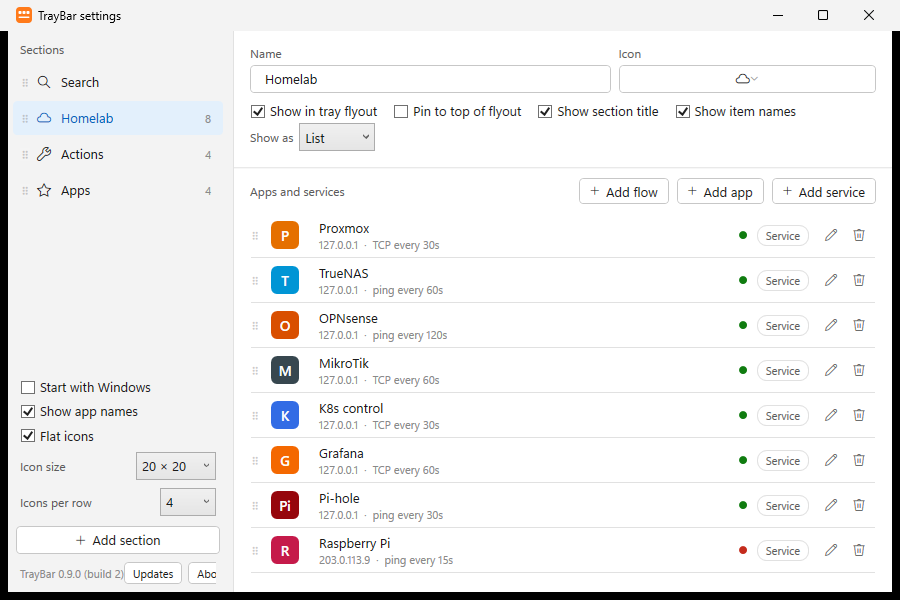
Everything is a two-pane settings window
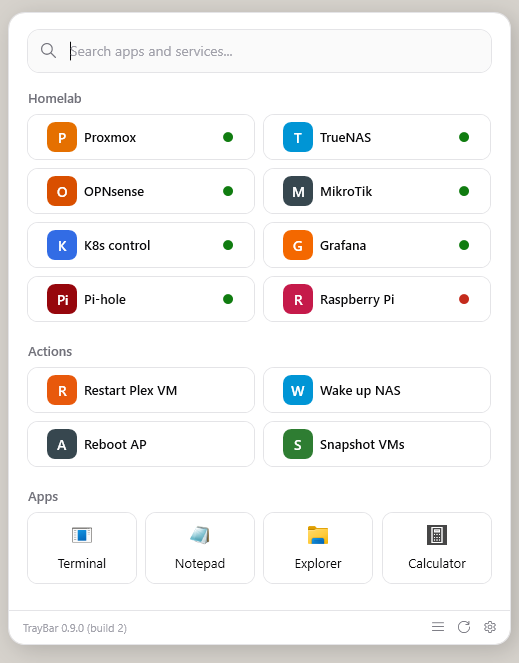
Reorder sections by dragging, edit items inline, drop .exe or .lnk files from Explorer to add apps. Each service row shows its check at a glance — method, interval, and current status. There is no Save button — every change applies and persists immediately.
Private by default.
TrayBar makes network requests only to the hosts you configure, for the checks you asked for. Anonymous usage statistics (a random ID and event counts — never names, paths, or hostnames) can be disabled with one setting. Crash logs stay on your machine.
Read the privacy policyFrequently asked questions
Is TrayBar free?
Yes. TrayBar is free for personal and commercial use.
Which Windows versions are supported?
Windows 10 and Windows 11, 64-bit.
Do I need to install .NET?
Not with the standard installer — it bundles everything (~49 MB). If you prefer a tiny download, the lite installer (~2 MB) uses the .NET 8 Desktop Runtime and points you to Microsoft's installer if it's missing.
Windows says "Windows protected your PC" — why?
TrayBar's installers aren't code-signed yet, so Microsoft SmartScreen warns about a new, rarely-downloaded file. Click "More info" → "Run anyway" if you downloaded it from this site. Code signing is planned.
Does TrayBar phone home?
Only two things, both optional: an anonymous usage ping (random install ID + event counts, no personal data — one checkbox turns it off) and an update check that runs only when you click "Check for updates." Your service checks go directly from your machine to your hosts.
Can it monitor services behind a login or reverse proxy?
Yes. HTTP checks treat any response below 500 as online, so auth gateways (401/403) count as up. You can also send a custom request header and accept self-signed certificates.
Can TrayBar restart a VM or a server?
Yes, with a flow. A flow step is any command line, and Windows 10/11 ship with an ssh client — so "Restart Plex VM" can be ssh root@pve qm stop 105, a 10-second wait, then qm start 105. TrayBar runs the steps in order; it doesn't read the command's output, so pair actions with a status check to see the result.
How do I remove it?
Uninstall from Windows Settings → Apps, like any program. Your configuration folder (%AppData%\TrayBar) is left behind in case you reinstall; delete it manually for a full cleanup.
Does it start with Windows?
Yes, if you want — it's an installer option and a checkbox in Settings (a per-user Run entry, no services, no drivers).